So, I'll skip most of the basics, I'll assume a lot here, like you have a CentOS/RHEL 7 box up and running, and that you have ZFS installed with your pool's ready to go. I will go a bit in to setting up a ZVOL to present as a block device for your iSCSI target.
First step is to create your ZVOL so your iSCSI target can present something to the outside world.
ZFS volumes
ZFS volumes are virtual block devices that can be used in the operating system like any other block device. This makes it appear to the OS as just a hard drive.# zfs create -V 1200g tank/lun1
Here is zfs list looks like(zool12_3 only)
# zfs list
NAME USED AVAIL REFER MOUNTPOINT
tank 1.21T 111G 96K /mnt/tank
tank/lun1 1.21T 1.19T 126G -
You can get into more detail with quota's and other things, a good reference site is this one (where I based this off of)...
http://www.fibrevillage.com/storage/168-zfs-pool-zfs-datasets-and-zfs-volumes
Setting up an iSCSI Server
Now that you have your ZFS block device created let's install targetcli# yum install targetcli
Let's enable it so when you reboot your storage it will automatically start
# systemctl enable target
# systemctl start target
targetcli Utility
The targetcli utility is the administration shell for creating, editing, and viewing the configuration of the kernel’s target subsystem. Run targetcli to enter the configuration shell.# targetcli
Warning: Could not load preferences file /root/.targetcli/prefs.bin. targetcli shell version 2.1.fb46 Copyright 2011-2013 by Datera, Inc and others. For help on commands, type 'help'. /> help
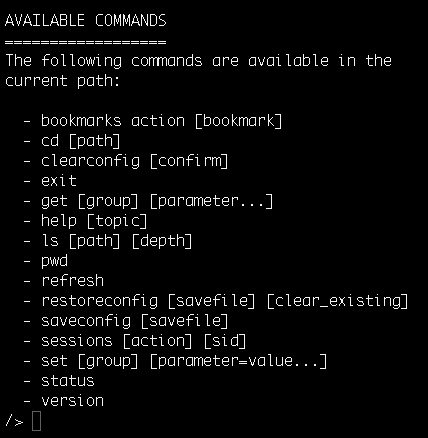
Run the help command from the targetcli prompt to view the available commands. Following are some of the available targetcli commands:
ls: View the object hierarchy.
cd: Traverse the object hierarchy.
create: Create storage objects, targets, LUNs, network portals, access control lists.
exit: Exit the targetcli shell and automatically save the configuration.
You can also enter “targetcli [command]”” to run commands without entering the shell.

